Apple released two new MacBooks in March. One is the easy recommendation. The other is a $599 Mac that's really good, but has some real catches. Here's how to pick the right one.

Some programs — engineering, video production, certain sciences — have specific hardware or software requirements that go beyond my general recommendations. A few still require a PC running Windows. Don't skip this step.
"What's the best Mac for college?" I see that question asked a lot, and with two new MacBooks released in March 2026, this year's answer is a little more interesting than usual.
Choosing the perfect Mac for college doesn't have to be overwhelming. This guide simplifies your decision with practical recommendations based on real-world experience managing thousands of student devices.
My recommendations aren't theoretical — they're based on 25+ years in IT, including time at AOL in the mid-90s, running an Apple Certified consulting business, and the last 16 years in Higher Education where I've overseen the deployment of 30,000+ Macs and iPads to students, faculty, and staff.
Top Pick: MacBook Air M5
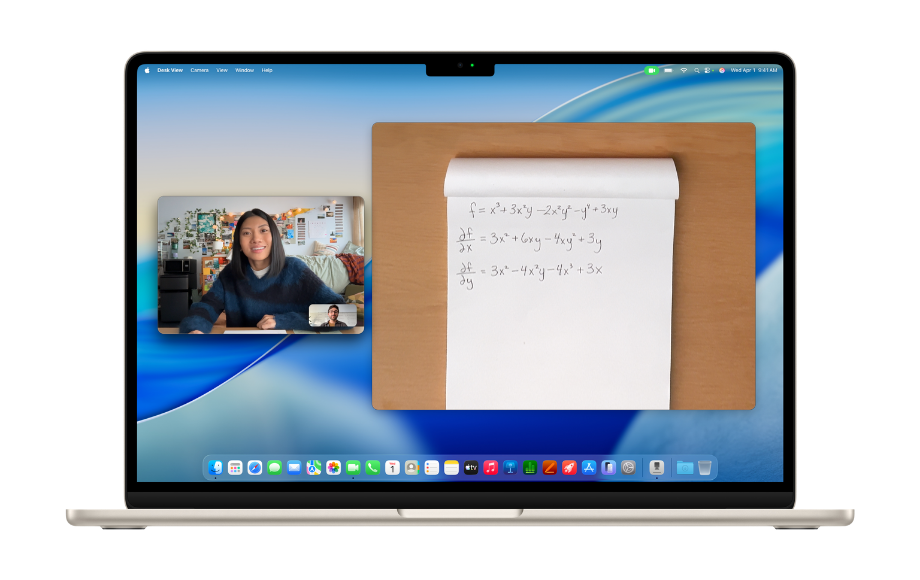 MacBook Air M5 · 13.6″
MacBook Air M5
Faster chip. Better charger. And 512GB storage as the new base. This year's pick costs less than last year's.
$79 less than the equivalent M4 configuration last year ($1,478) — driven entirely by 512GB now being the base.
For most students, the MacBook Air M5 is an excellent choice for college. Apple released the M5 in March 2026, and the best part of this update isn't the chip — it's that 512GB of storage is now the base configuration. Combined with a faster M5 chip (4× the AI performance of the M4), Wi-Fi 7, and a better charger in the box, this year's recommended setup still actually costs less than last year's — despite Apple's recent $200 bump on the entry price.
The MacBook Air comes in two display sizes (13.6″ and 15.3″) and four colors: Sky Blue, Silver, Starlight, and Midnight. Base prices at the Apple Education Store start at $1,199 (13.6″) and $1,399 (15.3″).
My recommended configuration
Apple's computers utilize a system-on-a-chip (SOC) design. In simple terms, this means the processors and unified memory are built into the SOC. There's no upgrading later, so it's wise to get as much processing power as you can afford now.
Bulleted list (native):
- Display — 13.6″. Big enough for most people, saves $200 vs. 15.3″.
- Processor — M5 chip, 10-core CPU, 10-core GPU. More cores = better multitasking and AI tools.
- Memory — 24GB unified memory. Handles multiple apps, browser tabs, and future software. Can't upgrade later.
- Storage — 512GB SSD. Now the base — room for 4+ years of files, photos, and apps.
- Charger — 40W Dynamic Power Adapter (included). A nice upgrade from last year's 30W. Up to 60W max charging.
- Protection — AppleCare+. Essential accident protection. Caps repairs at $99–$299.
Breaking down the key decisions
Why the 13.6″ display? The best balance of screen real estate and portability while saving $200 vs. the 15.3″. If you prefer the larger screen and it fits your budget, go for it — it's worth the upgrade for long study sessions.
Why upgrade memory to 24GB? The base 16GB is good. But 24GB ensures smooth performance throughout your 4+ years of college — multiple browser tabs, productivity apps, video calls, AI tools, all at once — without slowdowns. Remember, you can't upgrade this later.
Why the 40W charger? The M5 ships with a 40W Dynamic Power Adapter, a nice upgrade from the 30W that came with the M4. For most students this is enough. You'll fast-charge between classes without spending anything extra. If your day looks like back-to-back classes with only thirty minutes to top up, the 70W upgrade is still available for a small premium, but it's no longer a default recommendation.
Essential: AppleCare+
I strongly recommend AppleCare+ for college students. In my experience managing 30,000+ devices in higher education, cracked displays and liquid damage are the most common issues we see. AppleCare+ caps your repair costs at $99–$299 per incident. Without it? You're staring at $1,000+.
Budget Pick: MacBook Neo
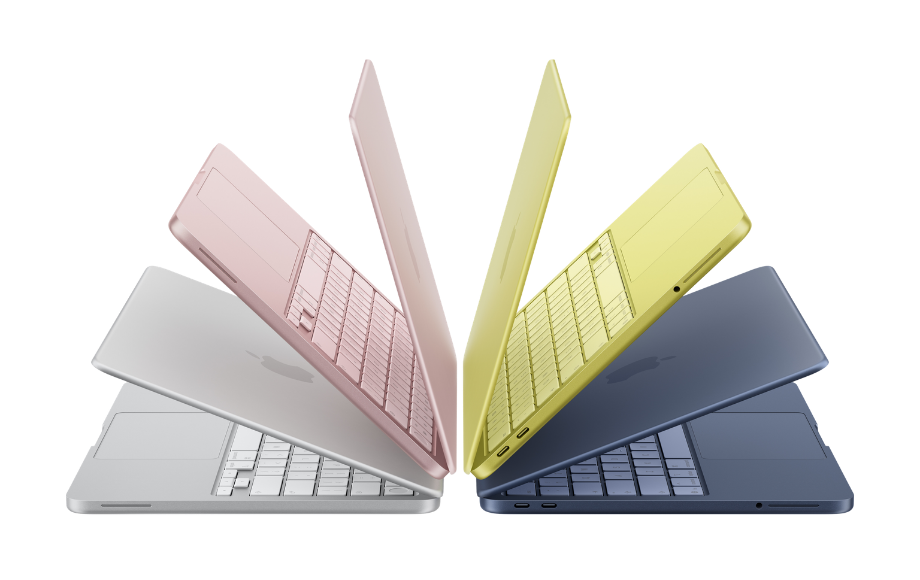 MacBook Neo · 13″
MacBook Neo
The most affordable Mac laptop Apple has ever sold to students. A solid pick for some, but a wrong fit for others. Let's dig into it.
New for 2026, the MacBook Neo is Apple's first truly budget Mac laptop. At $599 in the Apple Education Store (256GB) or $699 (512GB), it's the most affordable Mac that Apple has ever sold to students.
But the Neo isn't a smaller, cheaper MacBook Air — it's a different category of machine. It uses the A18 Pro chip (the same family of silicon as recent iPhones) rather than the M-series chips used in every other Mac. That makes it a perfectly capable computer for a lot of students, and the wrong computer for others. I want to be straight with you about both sides.
Where the Neo genuinely shines
Bulleted list (native):
- The price. $599 for a Mac is genuinely remarkable.
- Everyday performance. Web browsing, Google Docs, Microsoft Office, Zoom, Notes, email — all smooth and responsive.
- Apple Intelligence. Full support for Apple's AI features.
- Battery. 13–16 hours of real-world use — plenty for a full day of classes.
- Full macOS. It's a real Mac. iCloud, Continuity, every macOS app — all there.
Trade-offs you need to know about
These aren't nitpicks. They're things you'll notice in daily use.
- A18 Pro chip, not M-series. The Neo uses the A18 Pro — the same family of silicon as recent iPhones, not the M-series chips in every other Mac. It's capable for everyday tasks, but it has less raw power and memory bandwidth than even the entry-level M5. For light use this won't matter. For demanding creative or technical work, or running local AI models over four years, it may.
- 8GB RAM, fixed. You can't upgrade it. For light use (a few apps at a time) it's fine. By junior or senior year, when you're juggling 20 tabs and three apps, it gets noticeably sluggish.
- One of the two ports is USB 2.0. About 1/20th the speed of USB 3. External drive transfers are painful on that port. Save the faster port for what matters.
- No Thunderbolt, no MagSafe. Plain USB-C only. Compatible with most things, but you give up the magnetic safety of MagSafe and the full bandwidth of Thunderbolt.
- Only one external display. A single dorm monitor works fine. Dual-monitor setups don't.
- sRGB display, no True Tone. Fine for everyday stuff. Not great for design, photography, or video work where color accuracy matters.
- Lower-quality camera. 1080p FaceTime HD instead of the Air's 12 MP Center Stage. Video calls work — they just don't look as good.
- No backlit keyboard — and Touch ID only on 512GB. If you study in dim dorm rooms or coffee shops with mood lighting, the missing keyboard backlight could be annoying. And if fingerprint login matters to you, note that Touch ID is only included on the 512GB model — the 256GB Neo doesn't have it.
So is the Neo right for you?
Here's the simplest way to think about it.
The Neo is a great fit if…
- Your budget is firm and under $750
- Humanities, social science, or general business student
- Mostly writing, reading, browsing, video calls, notes
- You already have an iPad or Mac at home
- You don't study in the dark (really — the keyboard backlight thing is real)
Probably the wrong fit if…
- Creative program (design, photography, video, music)
- STEM field with heavy computational work
- You want a dual-monitor setup
- You run a lot of apps at once
- You need this laptop to last all four years without slowing down
- You use external drives often
If you read that list and the Neo still sounds right, it's a great pick at a price point that didn't exist a year ago. If you read that list and got nervous — the MacBook Air M5 is the safer four-year bet.
Quick Comparison
| Spec | MacBook Air M5 | MacBook Neo |
|---|---|---|
| Price | 13.6″ · from $1,199 | 13″ · from $599 |
| Chip | Apple M5 · 10-core CPU + 10-core GPU | A18 Pro (iPhone-family silicon) |
| Memory | 16–32GB (24GB recommended) | 8GB, fixed, can't upgrade |
| Storage | 512GB base · up to 4TB | 256GB or 512GB |
| Display | Liquid Retina · P3 · True Tone | Liquid Retina · sRGB only |
| Backlit keyboard | Yes | No |
| Ports | 2× Thunderbolt 4 + MagSafe | 1× USB 3 · 1× USB 2.0 |
| External displays | 2 (up to 6K@60Hz or 4K@144Hz) | 1 (up to 8K@60Hz, 5K@120Hz, or 4K@240Hz) |
| Wi-Fi | Wi-Fi 7 | Wi-Fi 6E |
| Battery | ~15.5+ hrs | ~13.5 hrs |
| Camera | 12MP Center Stage | 1080p FaceTime HD |
| EDU base price | $1,199 | $599 |
Need to Spend Less?
If my recommended MacBook Air M5 configuration stretches your budget, you have two paths.
Path 1 — Trim the Air (save up to $200)
- Keep memory at 16GB instead of 24GB ($200 saved). Trade-off: some slowdowns with heavy multitasking by junior/senior year, but generally manageable.
- Check Apple's Refurbished store — certified pre-owned with full warranty and AppleCare+ eligibility, often last year's M4 at a meaningful discount.
Path 2 — Step down to the Neo (from $599)
If your budget is firm under $750, jump back up to the Budget Pick and read it carefully. It's a Mac at a price that didn't exist a year ago — just make sure the trade-offs work for your specific situation.
What about software?
Most universities provide students with Microsoft 365 or Google Workspace for Education accounts. You'll typically keep access for as long as you're enrolled, but check with your IT department to confirm.
Check with your program about specialty software requirements. Some may be provided by the institution; you may need to purchase others. If so, always ask for student discounts.
For creative majors: Apple's Pro App Bundle for Education (~$199) includes Final Cut Pro, Logic Pro, and other professional tools — an excellent value if you need these applications. Apple also launched Apple Creator Studio in early 2026 — a subscription that bundles Final Cut Pro, Logic Pro, Pixelmator Pro, Motion, Compressor, and MainStage into a single plan. For college students and educators, it's priced at just $2.99/month or $29.99/year, which is a remarkable deal for a suite of professional tools that would cost several hundred dollars to purchase individually.
Essential gear and setup
The MacBook Air M5 has two USB-C/Thunderbolt 4 ports and a MagSafe charging connector. The MacBook Neo has two USB-C ports (one USB 3, one USB 2.0) and no MagSafe.
- USB-C to USB-A adapter. For older accessories that haven't made the jump yet.
- External backup drive — at least 2× your internal storage. For a 512GB MacBook, get a 1TB+ external drive. I recommend the Samsung T7 series — widely available and fast. Neo users: plug it into the USB 3 port, not the USB 2.0 port. The speed difference is dramatic.
- A paid iCloud+ plan (200GB or more). The free 5GB tier disappears fast once you turn on iCloud Drive Desktop & Documents sync, which is the easiest way to keep a semester's files backed up without thinking about it. A 200GB plan runs $2.99/month and covers most students. Go with 2TB ($9.99/month) if you shoot a lot of photos or video. It also protects everything else tied to your Apple ID — Photos, Messages, Notes, app data — so a lost or damaged Mac doesn't mean losing those too. If you also have an iPhone or iPad, the same plan covers those devices too, keeping photos, files, and messages in sync across all of them.
- Display adapters if you plan to connect external monitors. Neo users: only one external display is supported.
* When possible, buy accessories with USB-C connections.
* If buying a monitor for your dorm, look for one with USB-C that provides power — you can connect the display and charge your Mac with a single cable.
* Set up Time Machine backups immediately. Losing a semester's work is devastating, and you don't want to swim in the river of tears.
* Strongly consider a cloud backup. I use and recommend Backblaze. Set it and forget it.
When to consider alternatives
Consider a MacBook Pro if…
- Your major requires intensive video editing, 3D modeling, or software development
- You regularly work with large datasets or complex simulations
- You need more than two external displays
Consider waiting if…
- Your current computer works fine and you're not starting college for 6+ months
- Your program requirements are unclear — better to wait and buy exactly what you need
FAQs
Should I just get the cheapest MacBook?
For some students, yes — and that's why I included the MacBook Neo. But cheapest isn't the same as best value. The MacBook Air M5 will last comfortably through four years of college and well beyond. The Neo is right when budget is the hard constraint and your computing needs are light.
Is 16GB of RAM enough?
For the first year or two, yes. For all four years with heavy multitasking, AI tools, and whatever software your program throws at you, 24GB is the safer bet. You can't upgrade later.
13.6″ or 15.3″?
13.6″ for most people. It's lighter, cheaper, and plenty of screen for the way most students actually work. If you prefer the larger screen and it fits your budget, the upgrade can be worth it for extended study sessions.
What about the iPad as a laptop replacement?
For most college work, a MacBook is still the better primary device. Writing long papers, running multiple apps, and using full desktop versions of software all favor a Mac. iPads make excellent secondary devices for note-taking and reading.
M5 or wait for M6?
Buy what you need when you need it. Apple typically updates the MacBook Air on an annual or near-annual cadence, but if you're heading to college in fall 2026, the M5 will serve you brilliantly.
Can the MacBook Neo actually handle college?
For light-to-moderate use, yes. For four years of growing demands across a creative or technical major, the 8GB RAM ceiling and A18 Pro chip may be real limitations. See the trade-offs list above — if none of them are dealbreakers for you, the Neo is a legitimate pick.
Do I really need AppleCare+?
In my experience managing thousands of student devices, yes. Cracked displays and liquid damage are the most common issues, and they're expensive without AppleCare+.
This is one purchase worth getting right.
The MacBook Air M5 with my recommended configuration ($1,399 at the Apple Education Store) will serve you exceptionally well throughout college and beyond. It's a real investment, but it's your primary tool for academic success for the next four years.
For students with tighter budgets, the new MacBook Neo opens a door that didn't exist before, so just go in clear-eyed about the trade-offs.
But remember, before you buy, check with your program. Some majors have specific hardware or software requirements, and a few still require Windows. Don't skip that step.
Questions? Email me at hello@tomfanderson.com or find me on Threads. I'm here to help make this decision as stress-free as possible.
— Tom Anderson, @tomanderson, tomfanderson.com